

Showing posts with label windows phone7. Show all posts

gravatar

How to upgrade HTC HD7 to 32 GB


HTC HD7 Memory upgrade

WARNING : this tutorial needs you to open up your smartphone completely, and may invalidate your warranty. If you upgrade your HD7, you do it at your own risk !!

Read this tutorial entirely before starting. !!! This memory change will completely erase the contents of your phone. Backup it !!!


Thanks to Wolfman017 at XDA-developers.com

You will need the following tools :


- A HTC HD7 (yeah, easy...)


- A Sandisk MicroSD 32 GB Card : Warning !! Ony some references are compatible. Check the compatibility list at the end of this tutorial. 


- A Torx screwdriver - Size : 0.4


- A little plastic card, like a fidelity card (small size)


- Tweezers


- A piece of paper
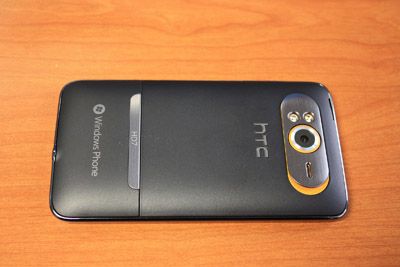


Remove the battery cover, the battery itself, and you SIM card : 


Now, you need to remove the bottom cover. To do this, insert the plastic card inside, and pull upside gently. It will be a little hard, just do it quietly until it "clics". Do the same on the other side, and finish removing the cover :


Take the screwdriver. At minimum, you will need to remove the 3 screws marked by red arrows. Personaly, I remove the 3 screws marked by the green arrows too for more confort. One of the screws is hidden by a VOID sticker (which unvalidates the warranty if you remove it). Either you don't remove this sticker, the other black screws will scratched by the screwdriver, and you will lose warranty in all cases.


Now, pull the plastic framework upside with your finger, to get access to the MicroSD card reader :


The MicroSD card is protected by a "metallic" sticker. Unstick it, and tear it below the plastic framework. You cannot remove it completely :


If you don't want to be annoyed by this sticker, place your piece of paper on it. Now push the memory card in his reader with the tweezers : you will here a clic. Release, the card will be ejected :


Take the MicroSD card with the tweezers, and remove it :


There you are. Now insert your brand new memory card, and reassemble your phone following the previous steps.

Once your phone is reassembled, put your SIM card, the battery, and close the cover.
To turn it on, push the two volume buttons, and keep them pushed while pressing the Power button :


Keep the volume buttons pressed until you see this message :


Press the Down Volume button to confirm the Hard reset :


Press again the Down Volume button to restart the phone. Follow the Windows Phone configuration wizard, then reboot your phone again (just a simple reboot).
And "voilà" ! A HTC HD7 with full memory !!!
 http://media.xda-developers.com/images/smilies/biggrin.gif


Updated on 28th April 2011 :
Compatible 32GB card :
- Sandisk SDSDQ-032G-J35 (Class 4 - Asian market)
- Sandisk SDSDQM-032G-B35 (Class 2 or Class 4)

Avoid these references :
- Sandisk SDSDQ-032G-E11M (Class 2 or 4)



[Thanks to Wolfman017 at XDA-developers.com]

gravatar

Windows 7 Shortcuts


Windows Phone 7 shortcuts


Original article

By Damian Koh, CNET Asia (click here)

Basic controls

How toShortcut
Unlock phone
Slide up on the locked screen to key in passcode.
Set ringing mode to silent
Press the volume button to silence the ringer; press the power button to silence ringer and switch off screen.
Set ringing mode to vibrate
Press the volume button and tap on the Ringer icon.
Display the status bar
Tap the top edge of the screen.
Return to home screen
Press the Start button.
Open a context-specific menu
Tap and hold on the screen.
Pin a Live tile on home screen
Tap and hold on the screen to bring up "pin to start" option. This works for applications, pictures, songs, map locations, favorite Web sites, OneNote notes and contacts.
Unpin a Live tile on home screen
Tap and hold on the screen to highlight the tile then select the unpin icon on the top right corner.
Rearrange tiles on the home screen
Tap and hold on the screen to highlight the tile then move is to desired location.
Do a voice search
Press and hold the Start button. Typical commands include "call name", "call phone number", "find search term" and "openapplication".
Access advanced options
Tap on the row of three dots at the bottom of the screen.
Quickly call someone from phone history
Tap the Call icon to call the person at the current number.
Jump to a letter in contacts
In People, tap any letter in the colored box and then the desired letter in the alphabet grid.
To bring up in-call options
Tap on the Down arrow to access the speakerphone, mute, hold and add call options.


Messaging

How toShortcut
Access common punctuation symbols
Tap and hold the period button and slide your finger to any of the /, :, ", &, + or - punctuation.
Activate onscreen cursor
Tap and hold the screen near the text you want to change.
Delete multiple emails
Tap on the far left of an email to bring up the check boxes.
To quickly add a period
Tap Space twice.
Turn on Caps lock
Tap and hold or double-tap the Shift key. Tap once more to turn it off.
Replace word you've type
Tap on the word to bring up the suggested list.
Send a multimedia message
Tap on the Attach button to pick a photo or start the camera for a new picture.


Web browser

How toShortcut
Zoom in/zoom out on Web page
Pinch/reverse pinch or double-tap to zoom in on a particular section.
Bookmark a Web page
Tap on the Star icon with a + sign.
Toggle between multiple windows
Tap on the multiple page icon.
Access common domain names
Tap and hold .com button and slide your finger to any of the .org, .edu and .net selections.


Multimedia

How toShortcut
Zoom in/zoom out when viewing photos
Pinch/reverse pinch or double-tap.
Share photos via email/SMS/or upload to Facebook/SkyDrive
Tap and hold the picture or tap More and select the Share option.
Access music playback controls
Press the volume key to bring up a mini player control.
Activate the camera when phone is locked
Press and hold the camera shutter.

>